Remote Environments for Letta Code
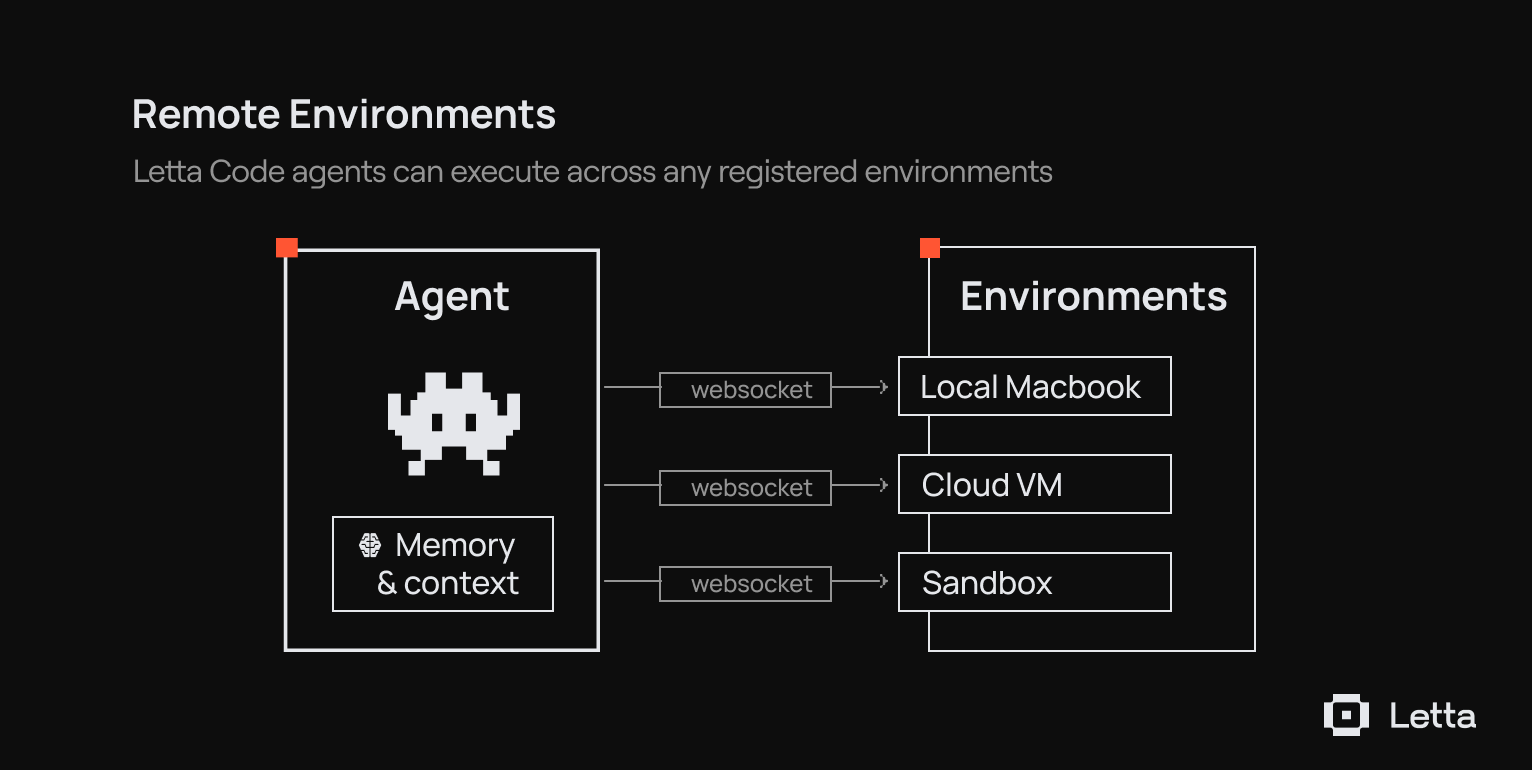
We're introducing Remote Environments, a way to separate where you interact with a Letta agent from where it executes. Using remote environments, you can interact with Letta agents from chat.letta.com that run locally on registered machines - meaning you can message an agent working on your laptop from your phone.
The same agent can even move between remote environments within a conversation, allowing agents to work across machines just like a human developer. When an agent moves between execution environments, all its memory (e.g. conversation history, context repositories, etc.) come with it. You can continue a conversation on a remote sandbox on your local machine, and the agent will still have the same persistent memory and conversation history. You can see more about how Letta agent’s memory work with our latest blog post on context repositories.
Remote execution for agents
Running letta server on any machine starts a WebSocket server and registers it as a named execution environment for your agent:

On chat.letta.com, you can select which remote environment to run your agent on.
Agents that can move across machines
Most agents today are defined by their environment: memories, skills, files, and other context are stored locally and must be explicitly transported. In contrast, human developers move between environments without losing context.
In Letta Code, all sessions are tied to a persistent agent that has an identity and associated memory. With remote environments in Letta Code, a single agent can work across:
- Your laptop
- An ephemeral sandbox
- A remote VM (e.g. Railway, GCP)
Permission modes when working remotely
Remote Environments carry the full human-in-the-loop approval flow over WebSocket. When the agent invokes a tool that requires approval, the approval request is surfaced in chat.letta.com. The user can approve, deny, or edit the tool arguments before execution proceeds.
You can configure the same permission modes with remote execution as you can with the Letta Code CLI:
- Default — standard approval checks for sensitive operations
- Accept Edits — auto-approve file edits, prompt for everything else
- Plan — agent plans but doesn't execute
- Bypass Permissions — full autonomy, no approval prompts
Next steps
You can register your machine as a remote environment by running letta server after updating to the latest version.
Install Letta Code with npm install -g @letta-ai/letta-code
Letta builds agents that learn. Agents with persistent memory, real computer access, and the infrastructure to improve from their own lived experience and work. Letta Code is the runtime that brings these together: git-backed memory, skills, subagents, and deployment that works across every model provider.

Traditional LLMs operate in a stateless paradigm—each interaction exists in isolation, with no knowledge carried forward from previous conversations. Agent memory solves this problem.

As AI agents become more sophisticated, understanding how to design and manage their context windows (via context engineering) has become crucial for developers.

Memory blocks offer an elegant abstraction for context window management. By structuring the context into discrete, functional units, we can give LLM agents more consistent, usable memory.

Although RAG provides a way to connect LLMs and agents to more data than what can fit into context, traditional RAG is insufficient for building agent memory.

Introducing “stateful agents”: AI systems that maintain persistent memory and actually learn during deployment, not just during training.


Today we’re launching the Letta Code app, a new way to interact with deeply personalized agents that learn over time and work locally on your machine.
The Conversations API allows you to build agents that can maintain shared memory across parallel experiences with users

Introducing Letta Code, a memory-first coding agent. Letta Code is the #1 model-agnostic open source agent on the leading AI coding benchmark Terminal-Bench.

The Letta API now supports programmatic tool calling for any LLM model, enabling agents to generate their own workflows.
Introducing Letta Evals: an open-source evaluation framework for systematically testing stateful agents.
Introducing Letta's new agent architecture, optimized for frontier reasoning models.
Letta agents can now take full advantage of Sonnet 4.5’s advanced memory tool capabilities to dynamically manage their own memory blocks.
Today we're announcing Letta Filesystem, which provides an interface for agents to organize and reference content from documents like PDFs, transcripts, documentation, and more.

We've releasing new client SDKs (support for TypeScript and Python) and upgraded developer documentation

Introducing Agent File (.af): An open file format for serializing stateful agents with persistent memory and behavior.

Introducing the Letta Agent Development Environment (ADE): Agents as Context + Tools

Letta v0.6.4 adds Python 3.13 support and an official TypeScript SDK.

Letta v0.5.2 adds tool rules, which allows you to constrain the behavior of your Letta agents similar to graphs.

Letta v0.5.1 adds support for auto-loading entire external tool libraries into your Letta server.


We evaluate how well models perform for driving agents that have identity, long-lived experience, and the capability to self-evolve. We find that models are still limited by a deep self-identification with ephemerality that cannot be repaired with prompting alone.

Today we are releasing the Context Constitution: a set of principles governing how AI agents manage context to learn from experience.
.png)
We're introducing Context Repositories, a rebuild of how memory works in Letta Code based on programmatic context management and git-based versioning.

At Letta, we believe that learning in token space is the key to building AI agents that truly improve over time. Our interest in this problem is driven by a simple observation: agents that can carry their memories across model generations will outlast any single foundation model.

Today we’re releasing Skill Learning, a way to dynamically learn skills through experience. With Skill Learning, agents can use their past experience to actually improve, rather than degrade, over time.
Today we're releasing Skill Use, a new evaluation suite inside of Context-Bench that measures how well models discover and load relevant skills from a library to complete tasks.
We are open-sourcing Context-Bench, which evaluates how well language models can chain file operations, trace entity relationships, and manage multi-step information retrieval in long-horizon tasks.
We're excited to announce Recovery-Bench, a benchmark and evaluation method for measuring how well agents can recover from errors and corrupted states.
Letta Filesystem scores 74.0% of the LoCoMo benchmark by simply storing conversational histories in a file, beating out specialized memory tool libraries.
We built the #1 open-source agent for terminal use, achieving 42.5% overall score on Terminal-Bench ranking 4th overall and 2nd among agents using Claude 4 Sonnet.

